



Handling Orders: Overview
When a customer orders a product using the Storefront application, the ordered items are automatically added to the uStore production center (under Orders view): the Print products are added to the Pending Prints queue and the Email products are added to the Pending Email queue.
In the Orders List you can select the type of queue you want to view, whether Print Queues, Email Queues or All Queues, from the Queue list on the top left. You can also select the parameter according to which the queues are grouped in the Group By field.
If you want to search queues according to the Order number,
enter the Order number in the Order
ID field and click the Filter
 icon.
icon.
To search for an order, select All Queues in the Queue list. Once selected, you will see the list of all the ordered products and the queues to which they are assigned.
 Orders are not processed as a whole, but at the product or item
level. Therefore, the default view displays the data by individual items.
To view the data of a specific queue grouped by order, choose Order ID from the Group By list.
Orders are not processed as a whole, but at the product or item
level. Therefore, the default view displays the data by individual items.
To view the data of a specific queue grouped by order, choose Order ID from the Group By list.
Clicking the Advanced Search link opens additional search filter fields where you can search the queues that belong to the queue type selected in the Queue field. In the Advanced Search, you can filter queues according to Product, Order Item ID, Store Name, Customer Name and Date Range.
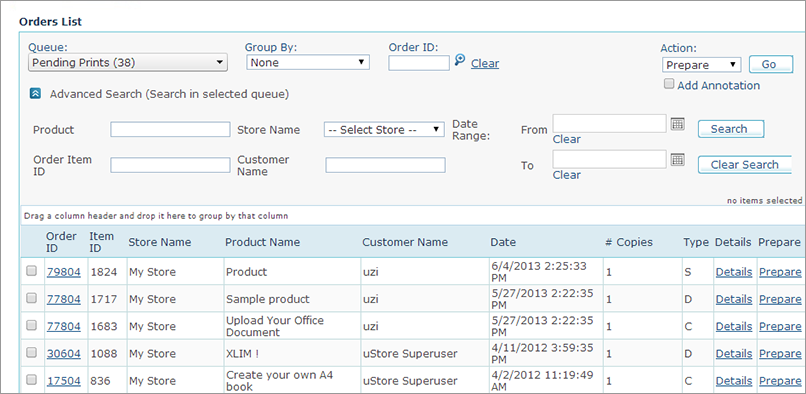
When a specific administrator logs in to the application, the Orders view is automatically filtered according to that administrator’s permissions, and shows only orders from stores the administrator has permission to access.
The administrator (usually the Store Operator, although this view can also be accessed by users that are part of the Administrator and Superuser User Groups) reviews the orders and prioritizes them. To do so, the administrator considers the print priority given by the customer and the printer’s needs for Print products (for example, the type of printer that is currently running) and the scheduled sending time for Email products (see Mandatory Email Product Properties). A pending item goes through several queues until it is successfully completed. The transition between queues is performed by the administrator, who selects the desired item(s), and either clicks the default Action link in the item row or chooses a queue-specific action from the Action drop-down list, and clicks Go.
See Also