



Adding a New Coupon Batch
1. In
the Coupons
list page, click the New
Coupon Batch button.
The Coupon Batch
Setup page is displayed. View
page

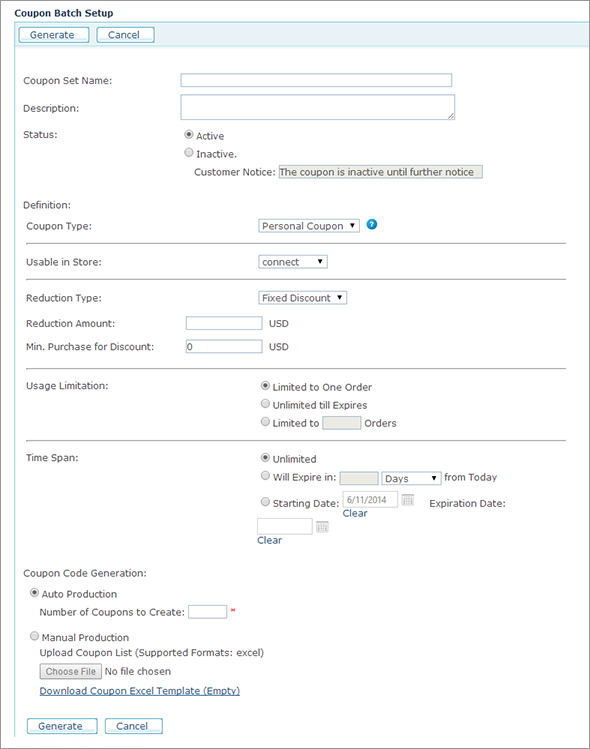
2. Fill in the following information:
|
Field |
Description |
|
Coupon Set Name |
Name of the coupon batch (mandatory). |
|
Description |
Description of the coupon batch (optional). |
|
Status |
Select Active or Inactive. Deactivating a coupon will make it unavailable in the store. In case the Inactive status is selected, the following default status message is displayed: "The coupon is inactive until further notice". This status message is editable. |
|
Definition |
This section contains fields that constitute the coupon definition. |
|
Coupon Type |
From the list select Personal Coupon or Promotion Code. A Personal coupon is a set of coupon codes. Each coupon code can be used by one customer only. A Promotion code is one or more coupon code/s. Each coupon code can be used by multiple customers, for example: coupons that are provided in a newspaper. |
|
Usable in Store |
Select the store in which the coupon will be used. |
|
Reduction Type |
Select one of the following options: ● Fixed Discount: select this option to offer a fixed monetary value discount. ● % Discount: select this option to offer a percentage discount. |
|
Reduction Amount |
Mandatory. ● If Fixed Discount has been previously selected in the Reduction Type field, enter the discount monetary value. uStore automatically applies the currency defined for the store selected in Usable in Store field. ● If % Discount has been previously selected in the Reduction Type field, enter the discount percentage. For example, for 10% discount, type in 10.
|
|
Min. Purchase for Discount |
The minimum purchase sum that enables using the coupon (mandatory). uStore automatically applies the currency defined for the store selected in Usable in Store field. The default minimum purchase sum is "0".
|
|
Usage Limitation |
If you selected Personal Coupon in the Coupon Type list, you can limit the coupon usage by selecting one of the following options that apply per customer: ● Limited to one order: the coupon expires after one use even if the entire discount sum has not been used. This is the default option. ● Unlimited till Expires: the coupon expires when the entire discount sum has been used or when the expiry date has been reached. ● Limited to …orders: the coupon expires after using it in the specified number of orders. If you selected Promotion Code in the Coupon Type list, you have two sets of limitations: one per Customer (see above) and one per Promotion Code. The following limitations are available per Promotion Code: ● Unlimited: there are no limitations that apply to the coupon. The only possible limitations (if any) are those defined per customer (see the options applicable for Personal Coupons). ● Limited to first...customers: the coupon expires after it has been used by a given number of customers. Note that in case you defined limitations Per Coupon and Per Customer, the limitations per coupon apply for all customers and in addition to that, the limitations per customer apply for each individual customer. For example, if you defined a coupon that is limited to first five customers and limited to 1 order, then only the first five customers will be able to use this coupon and each customer will be able to use it for one order only. |
|
Time Span |
This section defines the time span during which the coupon is valid. |
|
Unlimited |
The coupon has no starting or expiry date. This is the default option. |
|
Will expire in ….from Today |
The starting date of the coupon is today. The coupon will expire in a specified number of days/weeks/months from today. From the list select Days, Weeks or Months and in the text box enter the number of days, weeks or months. |
|
Starting date….Expiration date |
The coupon will be valid during the defined time interval. Select the Starting date and the Expiration date by using the Calendar icon. Both dates are mandatory. Click the Clear button to clear your definitions. |
|
Coupon Code Generation |
This section defines coupon generation mode. |
|
Auto-production Create…coupons |
Select Auto-production to automatically generate a coupon batch. In Number of Coupons to Create box specify the number of coupons you would like to generate. uStore will generate a CSV file ready to be downloaded. The file will contain unique, randomly looking, eight or more character-long coupon codes. |
|
Manual production Upload coupon list (supported formats: excel, CSV) |
When you want to have coupon codes in a certain format, select Manual Production to upload the coupon batch excel file prepared in advance. ● To prepare the coupon batch file, click Download Coupon Excel template (empty) link and save the template to your computer. ● To upload the manually generated coupon file, click Choose File next to the Upload coupon list (supported formats: excel, CSV) field.
|
 Coupon reduction is
applied on the price of the products excluding tax and delivery
fee.
Coupon reduction is
applied on the price of the products excluding tax and delivery
fee.3. Click Generate.
The coupon batch record is added to the coupon list in the Coupons tab.
4. Click Cancel if you wish to discard your definitions and return to the Coupons tab.
After the coupon batch file has been generated, the store administrator can download it and distribute it to the customers by email or as a printed document. Since the coupon distribution is not automated, the store administrator is responsible for creating an Email or Print Document and sending it to the customers using uDirect or uProduce.
See Also
Downloading the Coupon Batch File