



Installing uStore Patches
All uStore patches that are relevant for your uStore version are located in the XMPie Services section. At any point in time you can check whether new updates are available, and install the new patches to keep your system up-to-date.
To install new patches:
1. Enter the Presets view and click the XMPie Services link.

2. In the Check for new patches section, click the Install new Patches link.
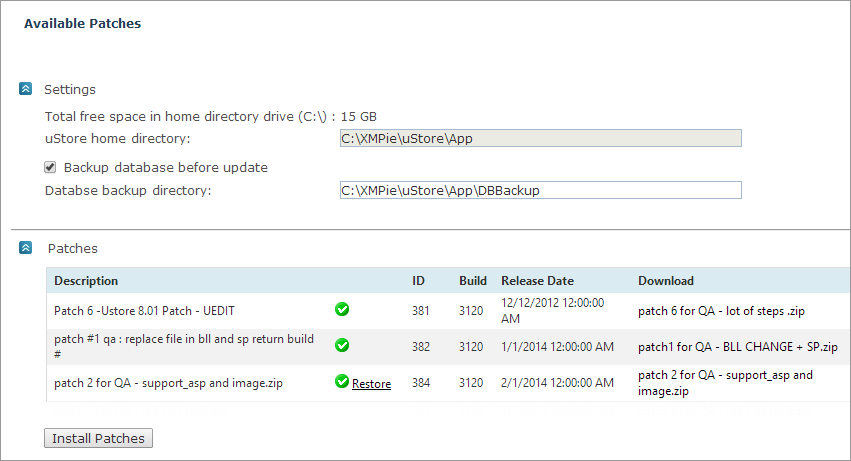
The page is divided into two sections: Settings and Patches.
The Settings section displays the following:
● Total free space in your home directory so that you can ensure that you have enough space to install the patches
● uStore home directory, which is where the patch will be installed.
● Database backup directory. If you want to back up the database before installing the patches, select the Backup database before update checkbox, and then enter the location for the backup files.
The Patches section displays a table listing all available patches. The patches are listed in chronological order according to their release date, starting from the earliest to the most recent patch.
3. Click Install Patches to install all available patches. A green checkmark
 appears next to a patch that was successfully installed.
 After patches have been installed you can revert the installation
of each patch by clicking the Restore
link. Restoring can be done one patch at a time, starting from the last
(most recent) patch. However, this process is partial and any changes
made to the database during the patch installation will not return to
their previous state. It is recommended that you consult a support representative
prior to restoring a patch.
After patches have been installed you can revert the installation
of each patch by clicking the Restore
link. Restoring can be done one patch at a time, starting from the last
(most recent) patch. However, this process is partial and any changes
made to the database during the patch installation will not return to
their previous state. It is recommended that you consult a support representative
prior to restoring a patch.