



Setting Up HP SmartStream from Within uStore
Because HP SmartStream is a web application, you can add a link to the application directly from the Presets menu.
To add an HP SmartStream workflow provider:
1. In the Presets view, click System Setup.
2. In the System Setup list, click Prepress Workflow Provider.
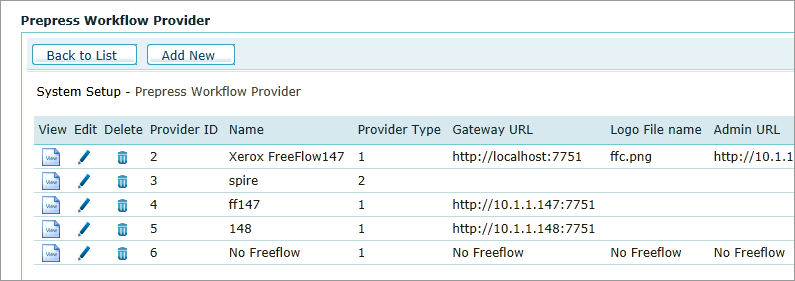
3. On the Prepress Workflow Provider page, click Add New.
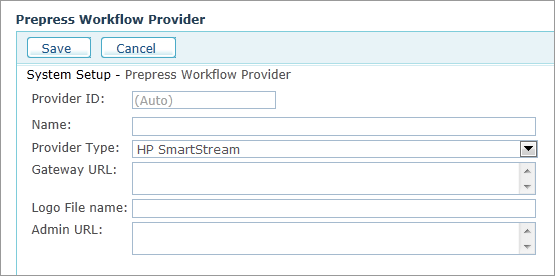
4. In the Name field, enter a name for the provider. It is recommended to give the provider a significant name that will help you select the correct workflow provider when you associate a product or product profile to it.
5. In the Provider Type list, select HP SmartStream.
6. In the Gateway URL, enter the required port as follows:
To connect to an HP SmartStream, type http://[ServerName]:8080/jmf/dfe or [IP_Address]: 8080/jmf/dfe. To verify, contact your HP local support.
 Make sure that there is no firewall between the HP SmartStream Provider
and uStore.
Make sure that there is no firewall between the HP SmartStream Provider
and uStore.
7. In the Logo File Name box, enter the path to the logo of the workflow provider. If you do not provide the path to a file, uStore uses the name of the provider instead (optional).
The file should be placed at: \\[ServerName]\XMPie\uStore\App\AdminApp\Images\Prepress
8. To create a link to the workflow provider in the Presets menu, in the Admin URL box, enter the path you usually use to access your HP SmartStream Dashboard.
9. Click Save.