



Setting Up Tax
Taxes in uStore are configured in the following locations:
● Tax Setup table (described in this section)
You can create taxes per country, province, ZIP code, and mark them as
applicable for Subtotal Price, Recipient List Price, Shipping Price and
Mailing Price. You can choose any combination of the available parameters.
● Tax Group table
Taxes must be assigned to Tax Groups. In the Tax Group table, you can create
Tax Groups to which you can later assign the store products (see Setting
Up the Tax Group Table).
● Edit Product page
In this page, the product is assigned to a Tax Group. By default, the products
are assigned to a Default Tax Group. Assigning products to a different
Tax Groups is used in case different taxes are applied to various product
categories.
● Store Setup page
In this page you define, for a given store, if the tax will be included
in the price and the format in which it will be displayed. If you choose
to include the tax in the price, you must select the store’s global country.
Only taxes applicable for the store’s global country will be taken into
consideration during the price calculation (see Defining
Tax Display and Tax Calculation).
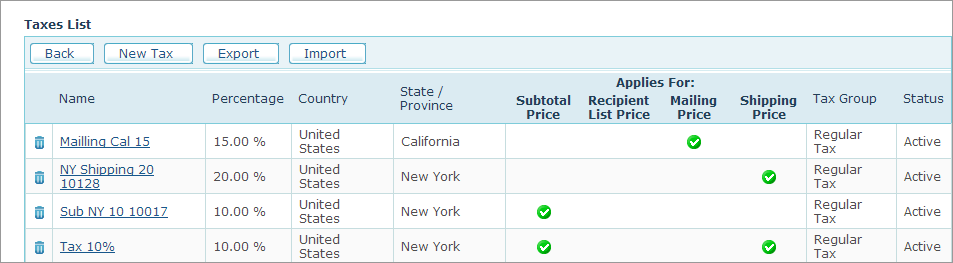
The Tax Setup page is used to define the tax fee by indicating the countries (and provinces if applicable) to which you provide delivery. In addition, you may select if you wish to apply the tax to one of the following prices: Subtotal, Recipient List, Shipping or Mailing. uStore enables defining multiple taxes that can be applied simultaneously.
To add a tax:
1. In the Presets view,
click Tax Setup.
The Taxes List
page is displayed.
2. Click the New Tax button.
The Tax Setup
page is displayed.
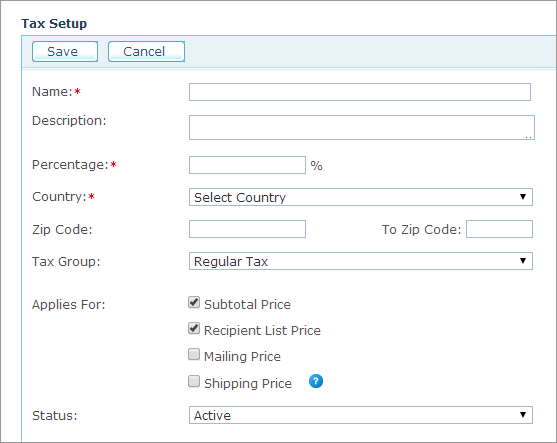
3. Fill in the following tax parameters:
|
Field |
Description |
|
Name |
Enter the tax name. |
|
Description |
Enter the tax description. |
|
Percentage |
Enter the tax fee as a percentage.. |
|
Country |
Select the country, where the tax applies. |
|
State/Province |
This field is displayed only if the selected country has states or provinces. Select the state/province where the tax applies. Do not fill in the province if you wish to define a tax for all provinces in the country. |
|
Zip Code |
Select a ZIP code where the tax applies. Do not fill in the ZIP code if you wish to create a tax for all the ZIP codes in the province (or county if province is omitted). |
|
To Zip Code |
Enter a ZIP code to create a range of ZIP codes, starting from the ZIP code you entered in the ZIP Code field. Do not fill in the To Zip Code field if you wish to use only one ZIP code as defined in Zip Code above. |
|
Tax Group |
In the drop-down list, select the Tax Group to which you wish to assign the tax. For more information about Tax Groups, see Setting Up the Tax Group Table. |
|
Applies for |
● Subtotal Price: Select this checkbox to apply the tax to the subtotal price. ● Recipient List Price: Select this checkbox to apply the tax to the Recipient List price. ● Mailing Price: Select this checkbox to apply the tax to the Mailing price. ● Shipping Price: Select this checkbox to apply the tax to the Shipping price. |
|
Status |
Select whether to activate this tax fee table entry (Active) or deactivate it (Inactive). |
4. Click Save.