



Setting Up the Delivery Package Table
The Delivery Package table allows you to add new packages to your store that can be used for delivery.
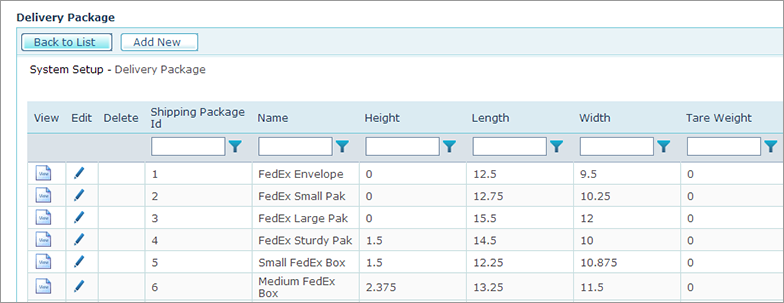
uStore is shipped with several FedEx packages that are commonly used by customers, as shown in the Delivery Packages list page.
To add new delivery packages:
1. In the Presets view, click System Setup.
2. In the System Setup list,
click Delivery
Package.
The list of all defined packages is displayed.
3. Click the Add New button.
4. In the Delivery Package page, fill in the following fields:
● Name: Name of the package to be displayed during Product Setup, as described in Setting Up Delivery.
● Height, Length, Width: Package dimensions. The Dimensions’ measurement units are determined in the Length Unit field.
● Tare Weight: Package weight. The Tare Weight’s measurement units are determined in the Tare Weight Unit field.
● Max Content Weight: Maximum loading weight allowed. The Max Content Weight’s measurement units are determined in the Max Content Unit field.
● Code: Enter a carrier package code. For example, enter FedEx package code to add a FedEx standard package or enter YOURPACKAGING (case sensitive) to add a custom package.
● Custom: Specify whether the package is a custom-made package or a standard carrier package.
5. Click Save.