



Setting General Delivery Options
1. In the
Product Setup page,
click Delivery Setup.
The Delivery Setup
page is displayed.
2. Click the General tab.
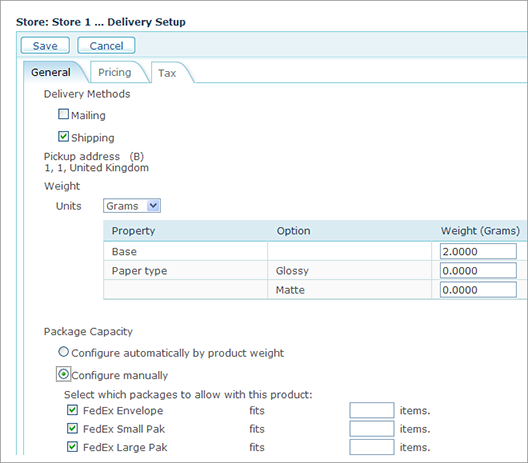
3. Under Delivery Methods, select whether this product will be shipped or mail dropped. Choosing either Mailing or Shipping enables the Provider that is selected for this product during the store setup, as described in Defining Delivery Settings.
4. The Pickup Address field displays the address of the Manufacturer to which this product is assigned. This is a view-only field.
5. In the Weight section (Shipping Only), which includes all of the product properties that affect delivery, select the weight units from the Units list and then enter the weight of each product property (that affects delivery) in the Weight column.
You can set the Base weight to zero and then enter
the actual weight of each product, or you can set the Base weight to a
fixed value and then each product property that affects the total weight
will define the addition to the Base weight.
Example

For Upload Products, the Weight value is set per page. The total weight of an Uploaded document, is a multiple of the weight per page and the total no of pages uploaded.
 The
total weight of a Composite Product is the sum of the weight of all its
components.
The
total weight of a Composite Product is the sum of the weight of all its
components.
6. In the Package Capacity section (Shipping Only) you can set up uStore to automatically calculate the number of packages required for shipment based on the total weight of all products, divided by the weight that a selected package can carry (the product weights are defined in the Weights section above). Alternatively, you can select the packages you want to use for shipping the product and then define how many product items fit into the selected delivery carrier’s packages (provided that a delivery carrier has been selected).
Composite
Delivery Package settings will override the Delivery Package settings
of all its components
7. When you have finished setting up general delivery parameters, click the Pricing tab to define prices for weights, as explained in Setting Delivery Pricing Options.
See Also
Setting Up Product Properties for Single Products