



Setting Up Composite Products (Storefront Groups Only)
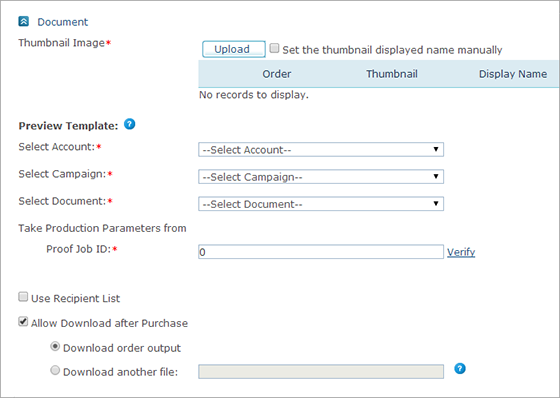
To set up a Composite Product:
1. In
the Thumbnail Image area, click
Upload to
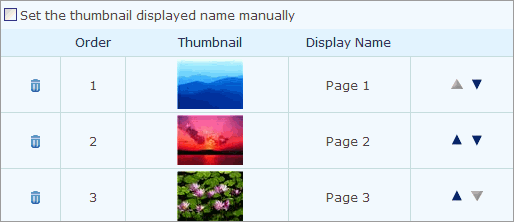
start uploading thumbnail images for the product. Each thumbnail
is uploaded separately. When uploading more than one thumbnail, you can
reorder them.
Learn more on
how to upload a thumbnail image

 .
.2. Preview Template: The user must first create a Preview Campaign to include available properties of all the components of the Composite Product, as described in Creating a Preview Campaign. The campaign should be uploaded to the uProduce server, using the Account that is connected to the store and should go through Proof and process procedures before being made available for use in uStore.
Select the Account, Campaign and Document of this Preview Campaign. Only the Accounts, Campaigns and Documents that are available for the uProduce user set in the Store Setup page are displayed in the corresponding drop-down lists.
3. The Take Production Parameters from field indicates the Proof Job ID used for production. The system automatically retrieves the last job performed by the uProduce user as defined in the Store Setup page. You may modify the Job ID if you want to use production parameters from a different job. In case you modified the Job IDs, click the Verify link to check if the entered ID is correct.
4. Select the Use Recipient List checkbox if you want to enable clients to personalize the product using a Recipient List. If this checkbox is not selected, the personalization option is omitted. You must select this option if you wish to add a personalized URL to a Dynamic or Email Document (see Setting Up Cross Media Website (Dynamic and Email Products).
 Once an order has been placed for the product in the Storefront
or the product is in Draft mode in a shopping cart, the Use
Recipient List checkbox can no longer be cleared.
Once an order has been placed for the product in the Storefront
or the product is in Draft mode in a shopping cart, the Use
Recipient List checkbox can no longer be cleared.
5. Select the Allow Download after Purchase checkbox to enable the customer to download output files, such as generated PDF files.
● Download order output: Select this option to enable the shopper to purchase the production output files (rather than having the print provider print them).
● Download another file: Select this option to enable the administrator to upload a file that will be available for download by the shopper. The output download is available in the Order Details page at the store after the purchase order has been submitted.
Note that the possibility to download an output of the product that
has been placed offline or deleted may have an expiration period configured
in the ProductDownloadExpirationDays property
in Presets > System Setup > Global
Configurations (see Setting
Up the Global Configurations Table). uStore will start counting the
expiration period when the product is placed offline or deleted. When
the download period expires, the download icon will be disabled. When
hovering over the icon, a tooltip will be displayed, with an explanation
about the expiration of the download period. If the product is placed
online again, the expiration will be turned off.