



Setting Up Upload Products (Component Groups only)
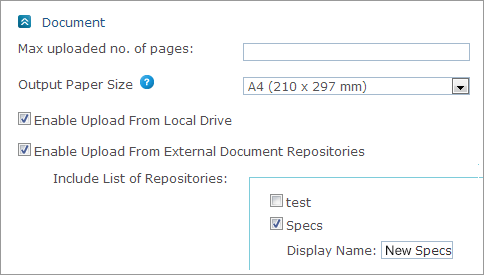
To set up an Upload Document:
1. In the Max uploaded no. of pages field, enter a value to limit the number of pages that can be uploaded per document.
2. In the Output Paper Size field, select a paper size from the list of values. The paper size options are set in Presets > System Setup > Paper Size. You can add more paper sizes to the list of values. When uploading products in the Storefront, the paper size is verified and if it does not fit the printable paper size, conversion to the correct size is suggested.
3. Select the Enable Upload from Local Drive checkbox to allow Storefront customers to upload Documents from a local directory. This option is selected by default.
4. Select the Enable Upload from External Document Repositories checkbox if you wish to allow uploading Documents from external Document Repositories defined in Presets. In the Include List of Repositories section, select the Document Repositories from which you wish to allow document upload. If you wish to rename a Document repository, type its name in the Display Name box.
See Also
Setting Up the Paper Size Table
Setting Up Document Repositories