



Setting Up a Proof
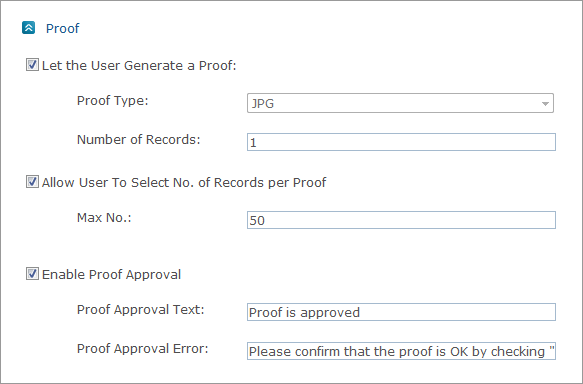
 You do not need to set up a Proof for Upload products.
To set up a proof:
1. Select the Let the User Generate a Proof checkbox to enable customers to proof the product before purchasing it.
Once this checkbox is selected the following options are displayed:
● Proof Type (Dynamic documents only): You can enable customers to proof their documents as either PDF files or JPEG files. A default Proof Type is defined when setting up the store (see Setting Up the Store’s Advanced Parameters). You can a select value to override the default proof type.
For Composite Products, the proof format is PDF only. This format
overrides the proof format settings of all Component products. Proof
Type option is not available.
● Number of Records: Enter the number of records per proof.
2. Select the Allow User to Select No. of Records per Proof checkbox to enable users to define a number of records per proof, and enter the number of records in the Max No. text box.
The Number of Records option is not available for Static documents.
3. Select the Enable Proof Approval checkbox to have customers approve a document proof before they submit a purchase order. You can change the text used for customer approval in the Proof Approval Text text box, and the text used when a document proof has failed in the Proof Approval Error text box.