



Generating Predefined Reports
uStore Back Office application includes a selection of predefined reports that provide a basic overview of the uStore system and address common reporting needs, such as:
● Customer Totals
● Daily Orders
● Order Totals
● Job IDs
● Offline Billing
● Customer Opt-In Status
● Order Profit Margins
● Inventory Levels
To generate a predefined report, simply select the desired item from the Report drop-down list and click Generate. The report results are displayed on your screen and you can export the report to Microsoft Excel by clicking Download.
You can add graphs, charts, pivot tables etc. to the report and save as an Excel template to folder \\[servername]\uStoreShared\ReportTemplates\[ReportID].xlsx. (For information on the Report ID, see Setting Up the Report Table.) Use the range name "RawDataRange" as your data source.
The following is a sample report, Customer Totals, summarizing the total billing per customer.
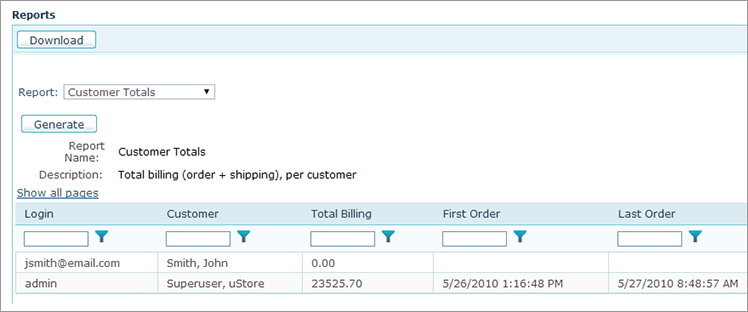
The uStore Back Office application also includes an enhanced selection of predefined reports, which can be easily refined to focus on particular data of interest. The reports are refined using one or both of the following tools: a report filter and report parameters.
Report filters are various SQL queries that were specifically defined to filter a particular report. If a report has filters, each filter returns a different set of records from the database; therefore you must select the relevant filter in order to run the report. For example: The “Order Totals” report is generated using one of the following filters: "Last Week", "Last Month" or "Last 2 Months".
Some filters allow you to further pinpoint the desired results by specifying a value or a text string of one or more required fields in the records returned from the database. For example, the "Contains" filter allows you to enter a text string to look for in the listed records.
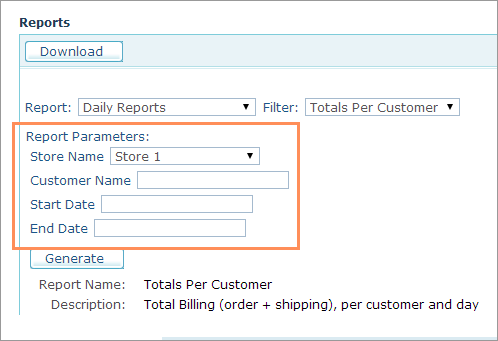
Report parameters give you the option to further pinpoint the desired results by specifying the value of one or more required fields in the records returned from the database. For example, the "Daily Reports" report allows you to choose a store name a report parameter.
You can sort any column in the resulted record list in ascending or descending orders by clicking the required column header. Clicking it once will sort the list in ascending order; clicking it again will sort it in descending order.