



Merchant Info
Store Administrators often want to display merchant information in receipts and emails sent from the store.
This information can be entered in the Merchant Information section and will be displayed in all receipts and email templates in the Storefront.
To add merchant information:
1. Under the Merchant Information section, click Add.
The Merchant Address dialog box is displayed.
2. Fill in the fields you want to appear in your receipts and emails.
 The Merchant’s address is not restricted to the locations supported
by the store.
The Merchant’s address is not restricted to the locations supported
by the store.
3. If you want
to add a company logo, click Choose File and
select the logo image you want to upload.
Note that the uploaded image must be either in JPG, GIF or PNG format and
should not exceed the following maximum parameters: width: 450px,
height: 80px.
4. Click Submit.
The dialog closes and the merchant information is displayed in the Merchant Information section.
Example

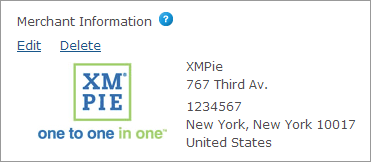
5. You can click Edit to modify the information, or Delete to remove it.