



Setting Security Options (SSL)
SSL (Secure Sockets Layer) is used to ensure that information added to uStore is secure. You need to install and configure SSL to be able to use the secure options.
In the Security Options (SSL) section, specify how to use the SSL protocol to secure the information users enter into your online stores (for example, login or payment details).
Securing uStore using SSL requires one of the following certificates, depending on the number of domains you want to secure:
● A regular SSL certificate – secures a single domain. This certificate is useful for securing a single store, or several stores that share the same domain name, but differ by their sub-folder name.
● A Multi Domain SSL certificate – secures multiple domains. This certificate is useful for securing several stores that have different domain names (friendly URLs).
Once you have installed and configured SSL on your website’s Internet Information Server (IIS), you can configure it in uStore by choosing one of the options below.
 When a Proxy server is used in front of an application server and
all connections coming from the web to the uStore server are routed through
the Proxy server, the SSL certificate must be installed on both uStore
and Proxy servers.
When a Proxy server is used in front of an application server and
all connections coming from the web to the uStore server are routed through
the Proxy server, the SSL certificate must be installed on both uStore
and Proxy servers.
To set security options:
Select one of the following options:
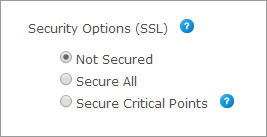
● In the Security Options (SSL) section, select Not Secured if you do not want the store to be secured by SSL. This option is useful while you are working offline and are in the process of setting up the store. Once you make the store available online, make sure you change this setting to either Secure All or Secure Critical Points.
● Select Secure All to secure all pages in this store. This configuration may significantly slow down the page loading. Use this configuration only when absolutely necessary.
● Select Secure Critical Points to secure all the storefront pages that contain passwords, personal information or payment details, such as Login, Checkout - Order Summary, and Personal Information pages.
See Also
Creating and Installing an SSL Certificate