



Setting Up Global Product Properties
Product Properties define the products’ pricing and delivery options. Product properties can be either product-specific or global, that is, available to all products in the Mall. A predefined list of global properties is available for your use. Some of these properties are system properties and cannot be deleted, others can be modified or removed.
Superusers can create additional global properties that will be available for use as product property templates in the entire mall. For example, you may want to create a product property that cannot be modified by the store administrator or be used for aggregation. Furthermore, global properties may be presented by default each time a store administrator creates a product. For example, you can create a product property for customer comments that will be displayed as a text box. Naturally, you can allow Store Administrators to override global property settings.
The following properties are system properties and cannot be deleted from the Global Properties list:
● Base: Refers to the product base price. This property is mandatory for all products and the settings cannot be modified.
● Schedule e-mail sending time: Mandatory for Email products. The settings cannot be modified.
● Color: Enables printing in black and white or in color. This property is mandatory for Upload products and the settings cannot be modified
● Double Sided Printing: Enables printing on one side of the page or on both sides. This property is mandatory for Upload products and the settings cannot be modified
● Binding Side: Enables binding on the long or the short side of the page. This property is a default property for Composite Products. The settings cannot be modified.
● Binding Type: Enables you to select a binding type. This property is a default property for Composite Products. The settings can be modified.
To create a global product property:
1. In the Presets view, click the Global Product Properties Setup link.
The Global Product Property List page lists all available product properties. The Base product property that appears in the list is an initial product property defined during uStore installation. Users assigned to the Superuser Root Group can add new product properties and schedule email sending time.
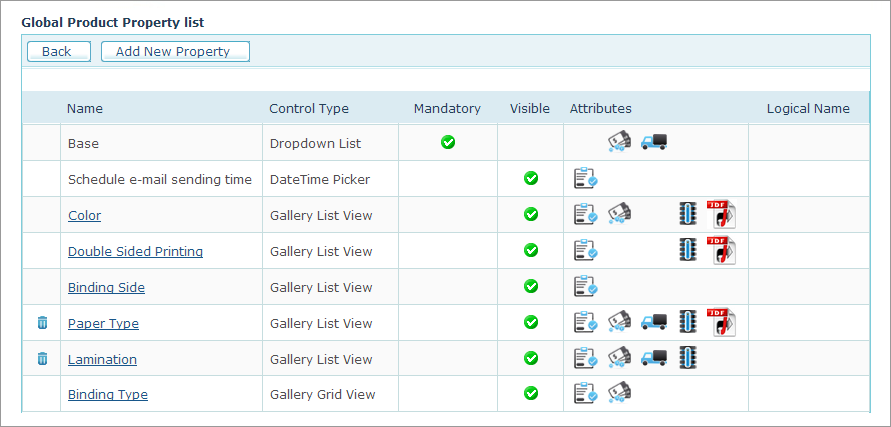
The Global Product Property list shows the settings of all available global product properties. Available settings for global properties are described in the following table.
|
Setting |
Description |
||||||||||
|
Mandatory |
A global property is mandatory in every product in the mall. |
||||||||||
|
Visible |
A global property is visible to customers in a store. |
||||||||||
|
Attributes |
|
||||||||||
|
Logical Name |
Indicates a property that is used to tag the product with a logical name. See a full description below. |
||||||||||
|
Control Type |
Type of input control, such as Gallery Grid View, Drop-down list or DateTime Picker. |


2. Click Add New Property to create a new Global
Product property.
The Global Product Property List
page opens. View
page

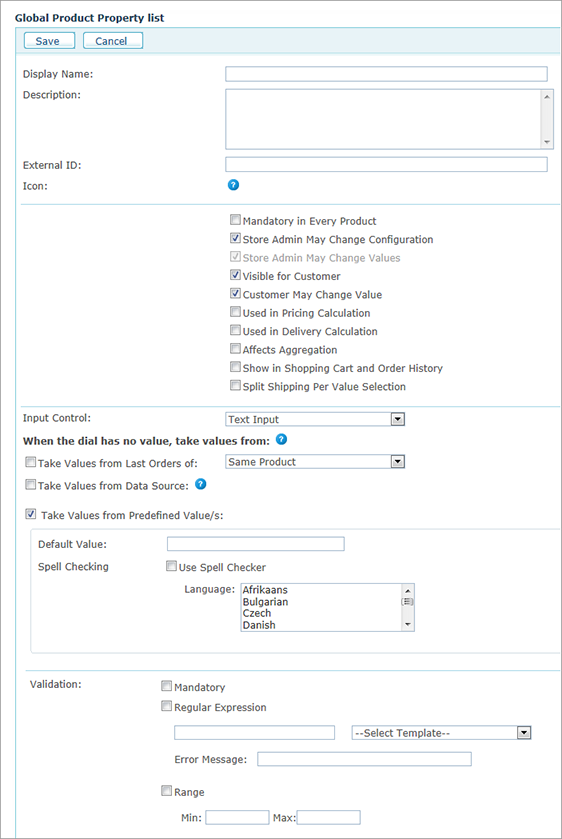
3. Enter a name, description and ID for the newly created Global Product property.
 You can design and display an icon to appear in the Storefront next
to the property name.
You can design and display an icon to appear in the Storefront next
to the property name.
This icon should be placed in the folder: \uStore\App\CustomerApp\Images\[SkinName]\PropertyIcons
It should be in PNG format and should be 20 x 20 pixels in size.
The name of the image for the selected status should be PropertyName_selected.PNG and
for the unselected status, PropertyName.PNG.
4. Select whether the Global Product property is:
● Mandatory in Every Product: The property will be added to any product that will be created. The property will be added to all the existing and newly created products. Note that if the property affects pricing calculation, prices will be set to zero in all the existing products.
● Store Admin May Change Configuration: Enables store administrators to select the following options when setting up the product properties:
§ Visible for Customer
§ Customer May Change Value
§ Used in Pricing Calculation
● Store Admin May Change Values: Enables store administrators to set the following sections when setting up the product properties:
§ Input Controls
§ When the dial has no value, take values from
§ Validation
● Visible for Customer
● Customer May Change Values
● Used in Pricing Calculation: Product properties affecting pricing are also taken into consideration during the cost calculation.
● Used in Delivery Calculation: You can define a Product Property that affects delivery cost calculations. For example, you can define several types of paper (for example, matte, glossy and plain) where each paper type has a different weight and thus affects the delivery cost. Delivery prices are determined during product setup, as described in Setting Up Delivery.
● Affects Aggregation: For more information on aggregating orders, refer to Handling Orders.
● Show in Shopping Cart and Order History: You can select if the Global Property will be displayed in the Shopping Cart and Order History pages.
● Split Shipping per Value Selection: You can determine if the Global Property can trigger split shipping. When in the Finalize Step of the ordering process a customer selects a Product Property value, the system verifies that this value is identical to the values selected for this Product Property in other products of the same order. If the values are not identical, the system automatically triggers split shipping. For example, if a customer ordered two products, both of which have a Turnaround Time Product Property, and the value of this property is different for each product (5 days for Product 1 and 10 days for Product 2), then each one of these products will be shipped separately. In the Storefront, when the Shopping Cart has items with properties that are set to Split shipping per value selection, if these properties have the same name but are assigned different values, the system will show a warning. The warning will also be displayed if the Shopping Cart contains one item with a property that is set to Split shipping per value selection, and another item that does not contain this property.
5. In the Input Controls list, select the
product property type. See Input
Controls list
6. The When the dial has no values, take values from section allows you to set each property’s default value for all arbitrary properties, and all value options, including default, for multi-optional inputs, such as a Dropdown List. This is done using one or more of the following options:
Take Values from Last Orders of
Take Values from Predefined Value(s)
You can select both the Take Values from Data Source and the Take values from Predefined Value/s options. In that case, if a value is missing in the Data Source, it will be taken from the values set in the predefined list.
7. In the Validation section select any of the following options:
● Mandatory: uStore must confirm that a value is provided by the customer.
● Regular Expression: uStore supports industry-standard regular expressions. You can choose a regular expression template that will be used to validate the value provided by the customer. The Select Template list provides common examples of regular expressions such as a Positive Integer, US Phone Number, etc. You can adapt this list to your needs by configuring it in the database. The Error Message field allows you add a textual message in case validation fails. For information on working with regular expressions, see http://www.regular-expressions.info and http://www.regexlib.com
● Range: specify the minimum and maximum values allowed for the value provided by the customer.
8. Click Save to
save the global product property.
The global product property appears in the Global
Product Properties
list. All properties that affect the price are displayed in the
Pricing Setup page of each product
as well (see Setting
Up the Product Pricing for Single Products).