



Setting Up the Province Table
Similar to the Country table, the Province table includes information regarding the province/state in which your store(s) and potential customers are located. See Setting Up the Tax.
 If a province is marked as supported for a certain store, it cannot
be deleted from the Province
table.
If a province is marked as supported for a certain store, it cannot
be deleted from the Province
table.
To add a province:
1. In the Presets view, click System Setup.
2. In the System Setup list, click Province.
3. Click the Add New button.
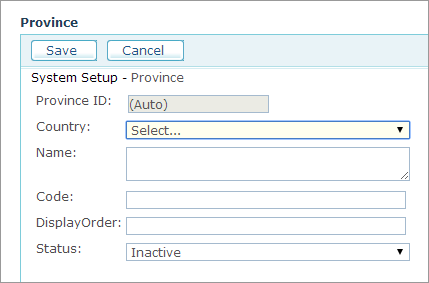
4. Fill in the following fields:
● Country: Select the country, in which the province is located.
● Name: Province name.
● Code: Province code. For example, enter ‘NY’ for New York.
● Display Order: Unique number that will determine the location of this province in the relevant dropdown lists in the system.
● Status: Select whether to activate this province table entry (Active) or deactivate it (Inactive). If the Status is set to Active, the province will be available for selection in the Supported Locations section of the Appearance tab in the Store Setup page (see Defining Supported Locations). If the province is already in use for a specific store, you cannot change its status to Inactive.
5. Click Save.
To edit the Province table localized text:
1. Click
the Edit Localized
Text button in the Province
Edit or View pages.
The Localization page
for the selected Province table is displayed.
2. Click
Add New to
add a new localized text or Edit
 to edit an existing one.
The selected table’s Localization
page is displayed.
You are required to add en-US localization prior to adding a localization
for any other language.
3. Fill in the Name field in your local language.
4. Click Save to save your settings.