



Using the Proxy Setup Utility
The Proxy Setup Utility is designed to help store superusers to configure uStore’s proxy server (if one is installed) with the appropriate ISAPI_Rewrite rules to support uStore’s Friendly URL feature (see Enabling Store-Friendly URL).
The Proxy Setup utility configures the Reverse Proxy server, behind which uStore is located; therefore, you must run the utility on the Reverse Proxy server itself.
In addition, you must also update the internal routing table in the Windows hosts file to make the domain name point to the uStore server.
To run the Proxy Setup utility:
1. In the Presets view,
click the Proxy
Setup link.
The Proxy Setup
page is displayed.
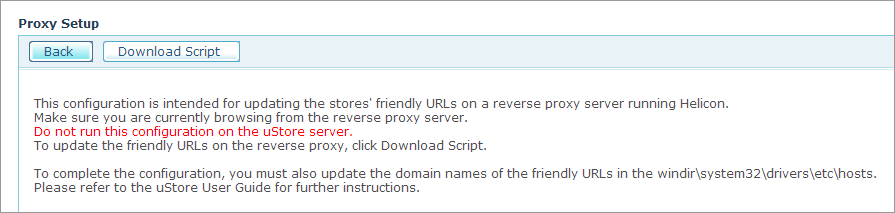
2. Click Download Script.
A message window is displayed, warning you that this action should take
place ONLY on the proxy server.
3. Click OK to
proceed.
The File Download
– Security Warning is displayed.
4. Click Open.
The Internet
Explorer – Security Warning is displayed.
5. Click Run to execute the script file.
6. Click OK on the XMPie Proxy notification window:
To update the hosts file:
1. Go to %systemroot%\system32\drivers\etc\hosts folder and open the hosts file with Notepad.
Note that since the hosts file is write-protected in Microsoft Windows Server 2008, you might receive an error message when trying to modify it. To work around this issue, perform the following steps:
● Click Start > All Programs > Accessories.
● Right-click Notepad and then click Run as administrator.
● If you are prompted for an administrator password or for a confirmation, type the password, or click Allow or Yes.
● Open the hosts file and make the necessary changes.
● Click Save on the File menu.
2. In the internal routing table, enter domain names of all the stores that have a public domain name and map each domain name to the uStore internal IP address.
For example, 192.168.4.17 www.MyDomain.com.
The domain name of the store can be found in Store Setup > Enable Store Friendly URL section > Store Domain field.