



Defining Shipping Options
You can enable uStore customers to ship products to multiple addresses per order. This is called Split Shipping. Split shipping is allowed in the following cases:
● When ordering more than one product, a customer can select a different shipping address for each product.
● For products that do not have a Recipient List attached, a customer can choose to select multiple shipping addresses for different quantities of the same product.
You can also enable your customers to select shipping addresses from a global address book. Once this option is selected, you can upload a global address book. The global address book can only contain countries and states (or provinces) marked as supported for a given store in the Supported Locations section of the Store Setup page.
Make sure that your Global Address List file includes the codes of the required countries and states (or provinces).
In the Storefront, the customer will be able to select the shipping address either from his shipping address list or from a global address book. Once a global address is selected, it is automatically added to the customer’s address list.
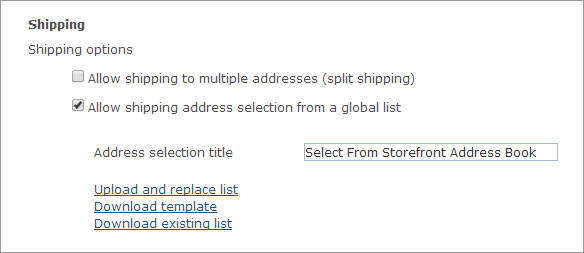
To select shipping options:
1. To allow uStore customers to split the shipping by selecting multiple addresses for their order delivery, in the Shipping section select the Allow Shipping to multiple addresses (split shipping) checkbox.
2. To enable your customers to select shipping addresses from a global address book, select the Allow shipping address selection from a global list checkbox, and continue with the following steps:
● In the Address selection title box, enter the name of the global address book. This name will be displayed to the customer in the Storefront.
● Upload your global address book file:
● If you already have a global address book file, click the Upload and replace list link to upload it .
 The
Country column in the uploaded file must contain
a country code as it appears in the System Setup Country table, for example
"US" for United States. See Setting
Up the Country Table.
The
Country column in the uploaded file must contain
a country code as it appears in the System Setup Country table, for example
"US" for United States. See Setting
Up the Country Table.
● If you want to prepare a new global address book file based on the uStore template, click the Download template link to download the global address template file (GlobalAddressTemplate.xls). Use this template to create your global address book and then upload it to uStore Back Office using the Upload and replace list link.
● If you want to edit an existing global address book, click the Download existing list link to download the existing global address book for editing. Once you have edited the file, upload it to uStore Back Office using the Upload and replace list link.