



Setting Up the Store Clearing Methods
When you set up a store, you must select at least one clearing method. Clearing methods can be:
● Online clearing: Payment is done at the time of the ordering. Automatic clearing using a payment services, such as PayPal, Moneris, Ogone, MultiSafepay and Authorize.Net. These clearing providers enable you to automatically clear transactions using either PayPal Payflow Pro, PayPal Web Site Payment Standard, Moneris e-Select, Ogone Redirect, Authorize.Net and MultiSafepay clearing methods.
● Offline clearing: Payment takes place after the order is entered by the customer. You can choose not to submit transactions to automatic clearing services, but perform the clearing in-house using the customer's credit card details as provided at ordering time. You can also use an invoice method, with which customers are not asked to fill in their credit card details. Instead, credit card collection takes place by phone after ordering time.
Common clearing methods used are: invoice, credit card payment and 3rd-party web payment services, such as PayPal and Ogone.
In the Clearing tab you select the clearing method(s)/clearing services you want to use in your store.
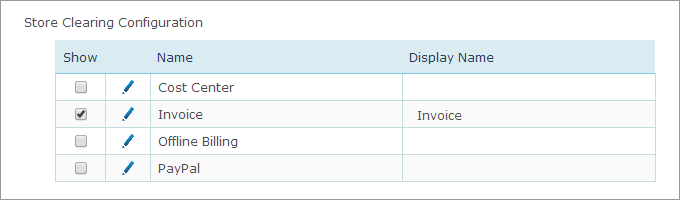
The Display Name column shows
the clearing method name you chose to display in your store. You can click
the Pencil button  to insert or edit a display name.
 Notes
Notes
● This setting cannot be overridden per-product.
● In uStore Connect stores, the Invoice clearing model is implicitly selected.
● Available Clearing Models are set using the Clearing Model Setup in the Presets view. For further explanations on how to configure clearing models, refer to Creating a Clearing Model.