



Assigning Users to the User Group
After having created a new User Group, you have to assign users to it. For existing User Groups, you may modify the user assignment.
 When users log in to uStore with LDAP credentials, they are automatically
assigned to predefined user groups.
When users log in to uStore with LDAP credentials, they are automatically
assigned to predefined user groups.
To learn more about LDAP login, see Enabling
LDAP Login.
To assign users to a User Group:
1. In the User Group Setup page, click the group whose user assignment you wish to modify.
2. Click the Users tab.
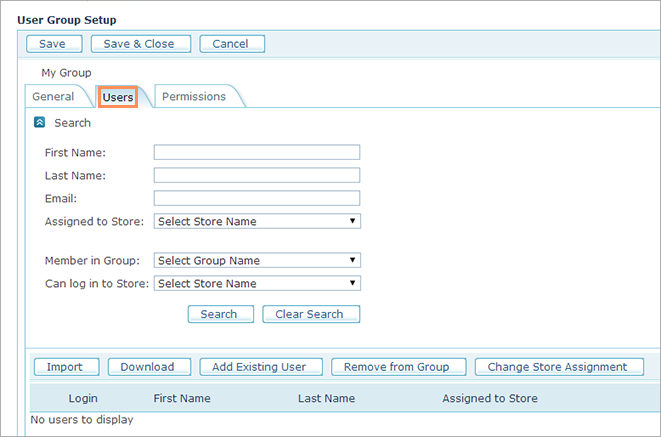
The Users tab displays detailed information about all users that are part of this group.
The window is divided into two sections:
● Search: Allows you to filter the Users List by entering or selecting the searched values in one or more filter fields. The search results are displayed in the Users List at the bottom section of the page.
● Users List: Displays a list of all users assigned to this group.
3. Select one of the following options to manage user assignment to a User Group:
● Import: Import a list of users you wish to assign to the selected User Group.
● Download: Download a list of users assigned to this User Group.
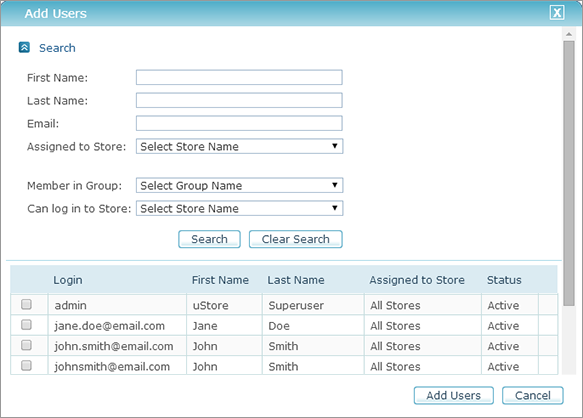
● Add Existing User: Add users that already exist in the system to the selected User Group.
● Remove from Group: Remove users from this User Group.
● Change Store Assignment: Change store assignment of the users assigned to this User Group. Note that a user in a User Group can be either assigned to all stores or to stores that are allowed for the User group (see Permissions tab).
4. Click Save.